


Learn through the super-clean Baeldung Pro experience:
>> Membership and Baeldung Pro.
No ads, dark-mode and 6 months free of IntelliJ Idea Ultimate to start with.
Last updated: March 18, 2024
Learn through the super-clean Baeldung Pro experience:
>> Membership and Baeldung Pro.
No ads, dark-mode and 6 months free of IntelliJ Idea Ultimate to start with.
In this tutorial, we’ll see how to monitor a directory recursively and execute a command whenever the files and directories within it change.
This capability helps to update directory views automatically, reload configuration files, log changes, back up, synchronize, and so on. It is an essential feature for complex utilities such as antiviruses, file managers, Dropbox-like applications, automatic IDEs checks, and many other tools.
The polling technique involves checking a specific resource at regular intervals. It’s usually the least efficient and most expensive way to perform an action when an event occurs, so we don’t recommend it.
Most operating systems have a file change notification mechanism that is a lot more efficient, responsive, and lightweight, such as inotify on Linux, FSEvents and kqueue on macOS, kqueue on FreeBSD/BSD, ReadDirectoryChangesW on Windows, etc.
However, the Linux inotify interface has some limitations:
For these reasons, we sometimes need to resort to polling. Let’s look at it in detail.
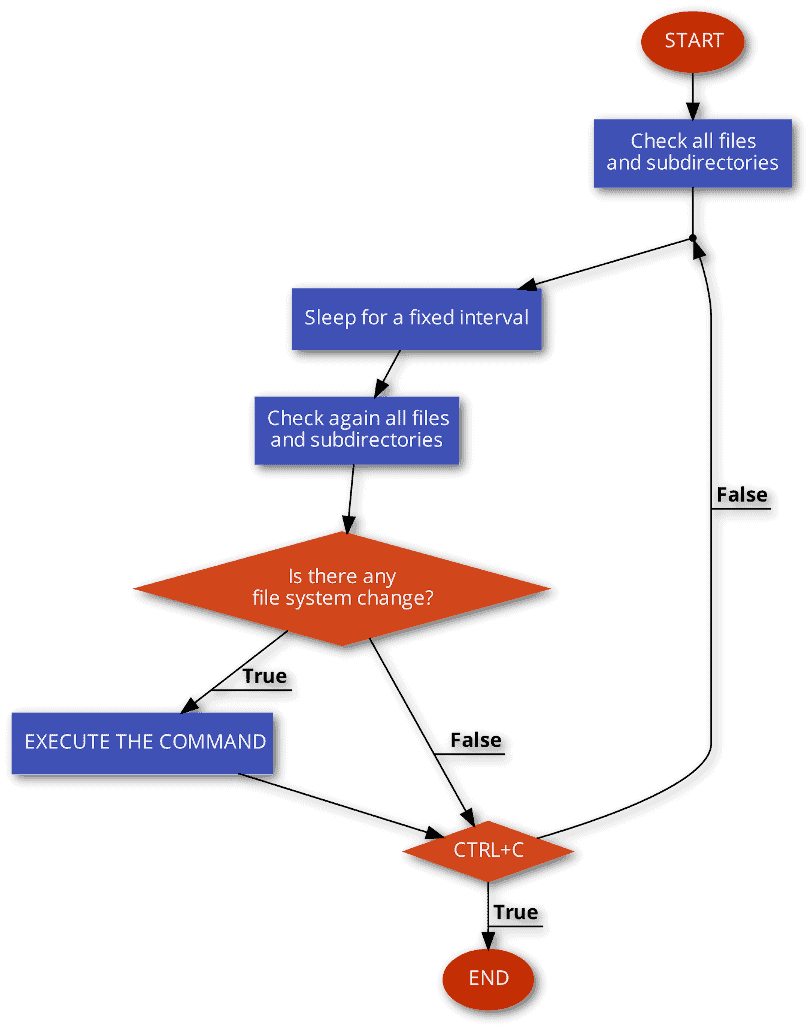
We can describe our polling algorithm with this flow chart:
 However, there are two pitfalls we should be aware of:
With this algorithm, the smaller the sleep interval, the closer (temporally) the command execution is to a file or directory change. Ideally, if the sleep were not there, command execution would be instantaneous. However, the smaller the interval, the greater the CPU and disk utilization. If the interval were not there, CPU and disk would be continuously used, causing overheating, wear, and system performance degradation.
For these reasons, we use a one-second sleep only as an example in the remainder of this tutorial. In practice, we have to choose the most appropriate interval depending on the circumstances.
In this section, we will see how to use the watch, ls, and sha256sum commands to detect a single file system change by polling.
watch runs user-defined commands at regular intervals. For example, we can repeatedly execute date by specifying the interval in seconds after the -n flag:
$ watch -n 1 dateTo exploit watch to detect a file system change, we need a hash that uniquely identifies the contents of the current directory. The trick is piping the output of ls as input to sha256sum:
$ ls --all -l --recursive --full-time | sha256sum
1caa6a277b9cab31fa031a2d5ae11d9c7c21dfd665db99ecaf93c11eec3045f4  -
Using the previous options, ls lists information about all files and subdirectories in the current directory:
So even a small change, such as saving a file without alternating its contents, will produce a different output of ls and, consequently, a hash change.
We can have issues when the ls output is very long. That’s why, to avoid the unexpected, we prefer to compare the fixed-length hashes produced by sha256sum.
Putting watch, ls, and sha256sum together, we can generate a hash every second:
$ watch -n 1 "ls --all -l --recursive --full-time | sha256sum"

Every 1,0s: ls --all -l --recursive --full-time | sha256sum       asusrog: Fri Jun  3 09:19:32 2022

b63a7d5d53177ef313d72fea12210d9a8855269a4a280fdde4913d4af8de3de0  -
Now let’s add the –chgexit flag, which terminates watch when the hash changes. Moreover, let’s use the Bash logical “AND” operator (&&) to execute the desired command (for instance, a simple echo) when watch is terminated by –chgexit:
$ watch --chgexit -n 1 "ls --all -l --recursive --full-time | sha256sum" \
> && echo "Detected the modification of a file or directory"
Within a second, when a change occurs in the monitored folder, the message “Detected the modification of a file or directory” is logged.
The code in the previous section is not yet inside a loop, so it terminates after the first detected change. Therefore, we insert an infinite loop. We also need to set a trap for CTRL+C to properly exit that infinite loop.
It would also be nice to specify the command to execute and the directory to monitor as input parameters. So, our final script, which implements the flow chart from earlier:
#!/bin/bash

DIR_TO_WATCH=${1}
COMMAND=${2}

trap "echo Exited!; exit;" SIGINT SIGTERM
while [[ 1=1 ]]
do
  watch --chgexit -n 1 "ls --all -l --recursive --full-time ${DIR_TO_WATCH} | sha256sum" && ${COMMAND}
  sleep 1
done
Let’s try it after saving it as test.sh:
./test.sh ./dirToMonitor 'echo Detected the modification of a file or directory'
Detected the modification of a file or directory
Detected the modification of a file or directory
[...]
It works as expected, running our echo command after every change.
In most cases, inotify is the most efficient and reasonable solution to keep track of the file changes under the directories on watch. It was merged into the Linux kernel mainline in 2005, so it’s a standard in all Linux distributions.
inotify has some limitations, as we saw earlier. The main issue is that it requires the kernel to be aware of all relevant filesystem events, which is not always possible for NFS, shared directories, and so on.
inotifywait and inotifywatch allow using the inotify subsystem from the command line. inotifywait waits for file system events and acts upon receiving one. inotifywatch collects file system usage statistics and gives out the count of each file system event configured. In the next sections, we will only consider inotifywait.
Let’s look at our script right away:
#!/bin/bash

if [ -z "$(which inotifywait)" ]; then
    echo "inotifywait not installed."
    echo "In most distros, it is available in the inotify-tools package."
    exit 1
fi

counter=0;

function execute() {
    counter=$((counter+1))
    echo "Detected change n. $counter"
    eval "$@"
}

inotifywait --recursive --monitor --format "%e %w%f" \
--event modify,move,create,delete ./ \
| while read changed; do
    echo $changed
    execute "$@"
done
We’ll not go into an explanation of every single line of our script. Here’s a breakdown of the important parts:
Let’s save our script as inotifyTest.sh in the directory to be monitored, then open two terminals. We will use the former to see how our script behaves and the latter to perform operations within the monitored directory.
Let’s start the script in the first terminal. In this case, the command to be executed is a simple echo:
$ ./inotifyTest.sh echo "Running our command..."
Setting up watches.  Beware: since -r was given, this may take a while!
Watches established.
Then let’s try some operations on files and directories in the second terminal:
$ touch newFile.txt
$ echo "Some content" >> newFile.txt
$ rm newFile.txt
$ mkdir testDir
$ cd testDir
$ touch anotherFile.txt
$ cd ..
$ rm -fR testDir
Meanwhile, the first terminal logged all the operations correctly. Incidentally, we note that the last command rm -fR testDir actually did two operations:
CREATE ./newFile.txt
Detected change n. 1
Running our command...
MODIFY ./newFile.txt
Detected change n. 2
Running our command...
DELETE ./newFile.txt
Detected change n. 3
Running our command...
CREATE,ISDIR ./testDir
Detected change n. 4
Running our command...
CREATE ./testDir/anotherFile.txt
Detected change n. 5
Running our command...
DELETE ./testDir/anotherFile.txt
Detected change n. 6
Running our command...
DELETE,ISDIR ./testDir
Detected change n. 7
Running our command...
So everything works as expected. However, we must pay attention to our actual use cases, as we’ll see in the next section.
Our script may detect many more events than we would like. For instance, let’s open a pre-existing text file test.txt with xed, make a change, and save it. We would expect one event, but, instead, our script detects four:
./inotifyTest.sh echo "Running our command..."
Setting up watches.  Beware: since -r was given, this may take a while!
Watches established.
CREATE ./.goutputstream-7FUFN1
Detected change n. 1
Running our command...
MODIFY ./.goutputstream-7FUFN1
Detected change n. 2
Running our command...
MOVED_FROM ./.goutputstream-7FUFN1
Detected change n. 3
Running our command...
MOVED_TO ./test.txt
Detected change n. 4
Running our command...
This unexpected behavior is due to the use of temporary files that we are generally not aware of. The same problem is present with other widely used terminal editors, such as nano.
Basically, there are two approaches to fixing the issue. The first is to restrict the type of monitored events, namely those indicated by the –event flag. The second is to exclude irrelevant files or directories by using the –exclude or –excludei flag.
For example, let’s try the same test again with xed, but exclude all the hidden files and directories by adding –exclude ‘/\.’ to the inotifywait parameters. This flag accepts a POSIX extended regular expression, so we need to escape the dots. Here’s the result:
$ ./inotifyTest.sh echo "Running our command..."
Setting up watches.  Beware: since -r was given, this may take a while!
Watches established.
MOVED_TO ./test.txt
Detected change n. 1
Running our command...
Of the four events previously detected, this time, our script monitored only the last one. That’s what we wanted. In general, we need to analyze our use cases to find the most appropriate exclude regexes.
In most cases, our script will work correctly. However, it may reach the system limit for the number of file watchers if the number of files is considerable.
Let’s try tail -f on any old file to verify if our OS exceeded the inotify maximum watch limit:
$ tail -f /var/log/dmesgThe internal implementation of tail -f uses the inotify mechanism to monitor file changes. If all is well, it will show the last ten lines and pause; then, let’s abort with CTRL+C. Instead, if we’ve run out of our inotify watches, we’ll most likely get this error:
tail: inotify cannot be used, reverting to polling: Too many open filessysctl helps us to check the current config:
$ sysctl fs.inotify
fs.inotify.max_queued_events = 16384
fs.inotify.max_user_instances = 128
fs.inotify.max_user_watches = 65536
Let’s see what these values mean:
Usually, we should modify max_user_instances and max_user_watches and keep max_queued_events as the default. It’s safe to raise these values, but each used inotify watch takes up 1 kB on 64-bit systems of kernel memory, which is unswappable.
To modify the configuration permanently, let’s edit /etc/sysctl.conf with root permissions (on Debian/RedHat derivatives), modifying the following lines or adding them if they don’t exist. Let’s remember to replace n with the wanted number (the maximum is 524288):
fs.inotify.max_queued_events = n
fs.inotify.max_user_instances = n
fs.inotify.max_user_watches = n
Then let’s reload the sysctl settings with sysctl -p (on Debian/RedHat derivatives).
In this article, we saw how to run a command whenever a file or directory changes.
The two basic approaches are polling and inotify, each with pros and cons. We’ve analyzed two complete scripts that implement both strategies, which we can customize according to our needs.