


Learn through the super-clean Baeldung Pro experience:
>> Membership and Baeldung Pro.
No ads, dark-mode and 6 months free of IntelliJ Idea Ultimate to start with.
Last updated: March 5, 2024
Learn through the super-clean Baeldung Pro experience:
>> Membership and Baeldung Pro.
No ads, dark-mode and 6 months free of IntelliJ Idea Ultimate to start with.
In this short tutorial, we’ll explain how to detect blocks of text from scanned images. This is a common problem in the field of OCR (optical character recognition). Firstly, we’ll briefly introduce the term OCR, and after that, we’ll explain and provide code on how to approach these kinds of problems.
Optical character recognition (OCR) includes a set of techniques that we can use to convert an image of text into a machine-readable text format. Typically, OCR methods facilitate the conversion of various types of documents, including scanned paper documents, PDF files, or any images containing text, words, or individual letters.
OCR methods find applications across various industries. Some of them include:
As an example, we’ll try to detect and extract text from the image below:
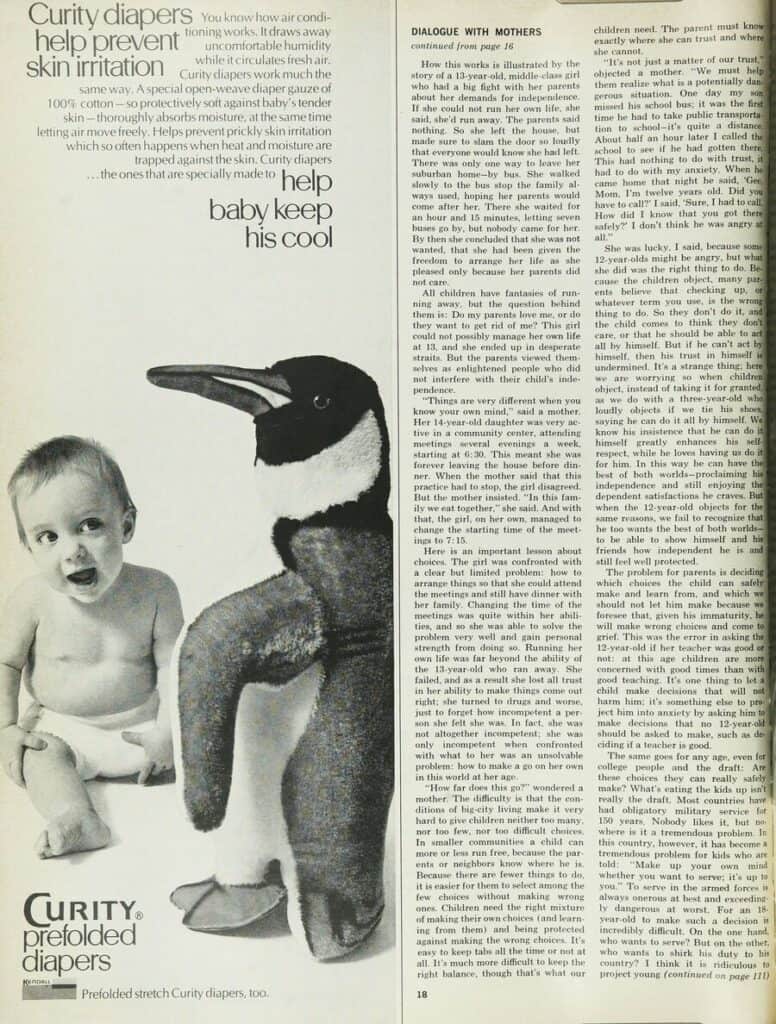
This is most likely a scanned image from a newspaper or book. It contains text of varying sizes, with most of the text arranged in two-column paragraphs, which can be challenging to detect for computer programs correctly. We’ll use Python and the PyTesseract library to extract text from this image.
PyTesseract is an OCR tool for Python. It’s a wrapper for Google’s Tesseract-OCR Engine, one of the most accurate OCR tools available. Tesseract-OCR Engine segments images into individual characters or groups of characters, extracting features such as shape and intensity distribution.
Utilizing trained models and machine learning algorithms, it classifies these features to recognize the most likely characters in each region. Finally, Tesseract performs post-processing steps like language modeling and context analysis to improve the accuracy of the recognized text.
PyTesseract is pretty simple to use, and with a few lines of code, it’s possible to extract text from most of the images. Let’s try to extract text from our image with minimal code:
import pytesseract
from PIL import Image

image_path = '../img/kZm49.jpg'
extracted_text = pytesseract.image_to_string(Image.open(image_path))
print(extracted_text)
The extracted text looks like this:
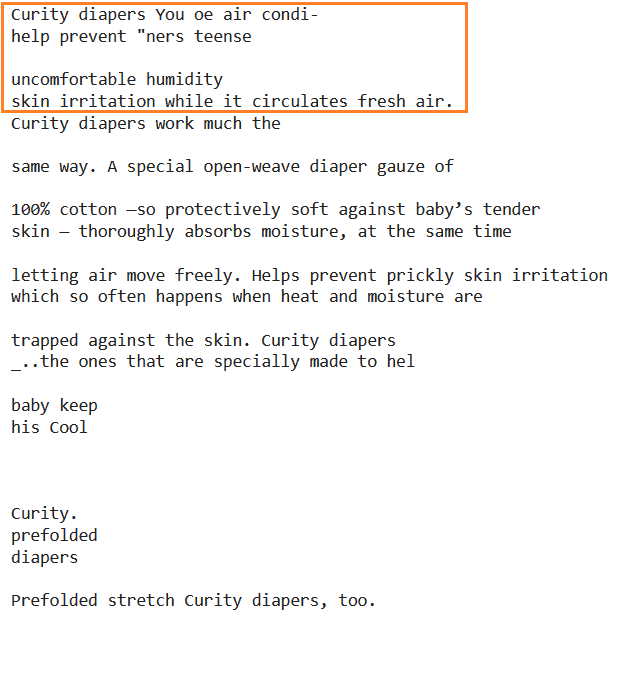
The text in the orange box is incorrect due to variations in text size and unusual formatting of the paragraph in the image. However, after that part, the accuracy notably improves, and the detected text looks pretty good.
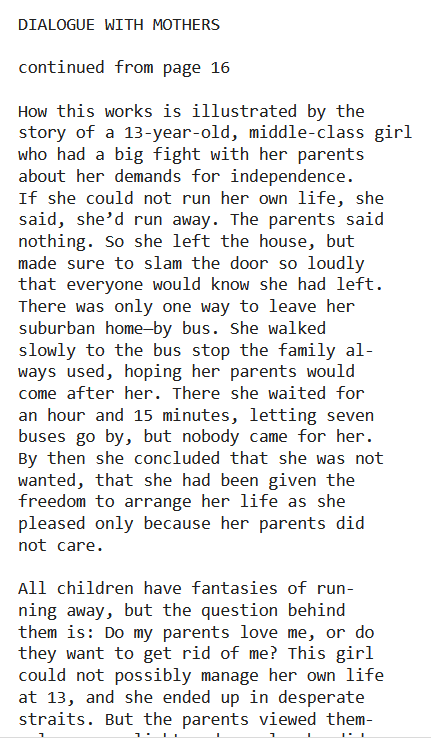
More importantly, the main body of text on the right side, where we have a two-column paragraph, was recognized and extracted correctly. Each paragraph, new line, or block of the text is faithfully presented in the same format as in the image:
With Pytesseract, it is possible to show bounding boxes around text. Besides that, to improve the wrongly extracted text from the previous example, we’ll only crop that part of the image:
import pytesseract
import cv2

image_path = '../img/kZm49.jpg'
image = cv2.imread(image_path)

# crop the image
height, width, _ = image.shape
cropped_image = image[:height//3, :width//2, :]

# extract and print text
extracted_text = pytesseract.image_to_string(cropped_image)
print(extracted_text)

# get the data for bounding boxes
d = pytesseract.image_to_data(cropped_image, output_type=Output.DICT)

# draw the boxes on the image
n_boxes = len(d['text'])
for i in range(n_boxes):
    if int(d['conf'][i]) > 50:
        (x, y, w, h) = (d['left'][i], d['top'][i], d['width'][i], d['height'][i])
        cropped_image = cv2.rectangle(cropped_image, (x, y), (x + w, y + h), (0, 255, 0), 2)

cv2.imshow('cropped_image', cropped_image)
cv2.waitKey(0)
The extracted text and the image with bounding boxes look like this:
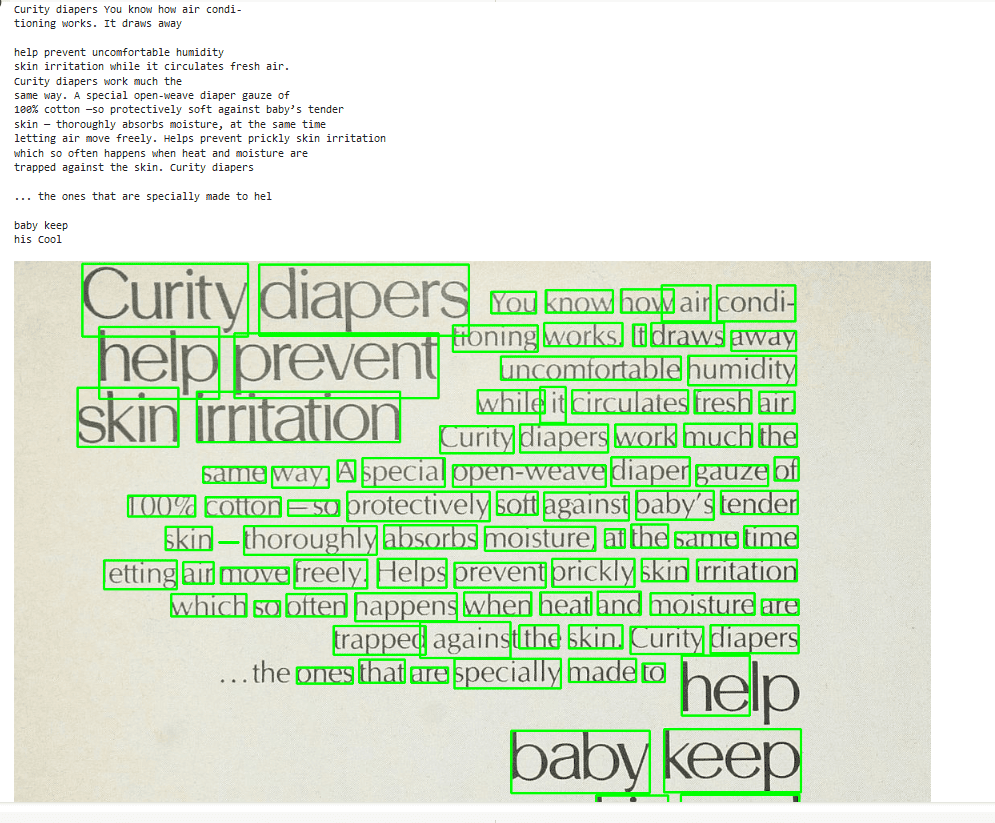
Interestingly, unlike the previous attempt, where we utilized the entire image, the extracted text now appears almost perfect. This improvement can be attributed to Pytesseract’s application of preprocessing techniques alongside neural networks for text detection and recognition.
The process is notably enhanced when the image contains cleaner and more consistent text. Additionally, the OCR system can focus solely on the relevant parts by eliminating irrelevant distractions.
It’s obvious that the accuracy of text recognition highly depends on the image quality. Every preprocessing step that leads to a higher-quality image will also help with text detection. Similarly, some image preprocessing techniques can worsen image quality. Everything depends on the specific image, and one preprocessing method might refine one image but impair and corrupt another.
Thus, OCR preprocessing methodology for every project needs to be created and tuned separately. Some preprocessing techniques that we can try include:
In this tutorial, we presented a simple but effective solution for detecting and extracting text from images. We briefly introduced the OCR term and explained with an example of how to use Pytesseract for that purpose. Lastly, we mentioned additional steps to improve the OCR project.